No Dues Management
No
dues, will allow you to maintain the dues status of the student before leaving
the college after successful completion of the program or by any valid reason. No
Dues Management will allow you to maintain no. of dues nodes and to associate
any authority to that node, who will be responsible to check the dues status of
the student and to submit their dues clearance status as YES/NO.
Dues
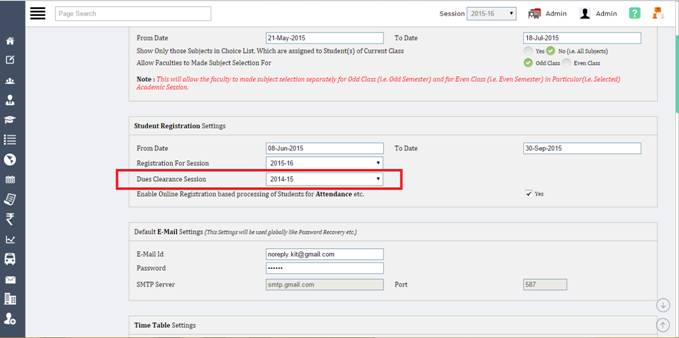
clearance will be performed in particular academic session, which could be
different from current academic session. So you can maintain the Dues Clearance
Session in “Academic Settings” menu. In which all the dues clearance process
will go on.
At
the Authority level i.e. who is the in-charge of clearing the dues at particular
node, can only mark the status as YES/NO. Once it is submitted, User cannot
change the dues status of the particular student.
If
it is required to change the dues status of any particular node, then this can
only be possible by “admin” login. Admin user can login to ERP to change
the dues status of the particular students for the particular node.
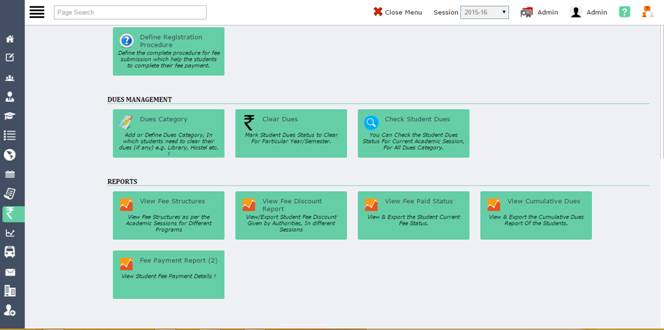
Dues
management will involve the following procedure:
1.
Dues
Category
·
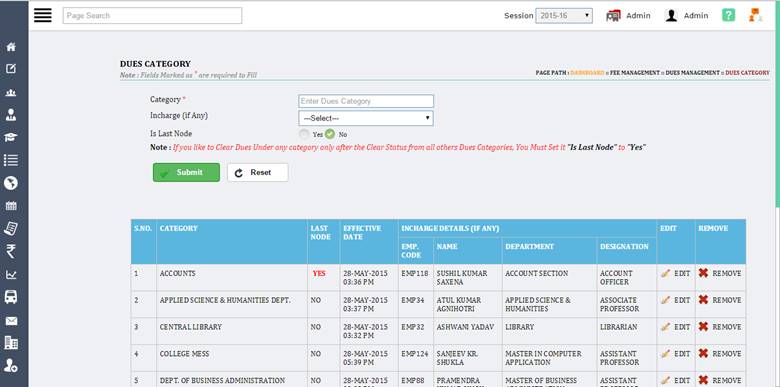
This will
allow the user to maintain no. of nodes for dues and to associate any authority
to it, from where student need to take the clearance of dues. User Can also
mark any node as “Is Last Node”, which will restrict the node to clear
the student dues status only when he/she get the clearance from all other dues
node.
·
User can
create Dues Nodes/Category as per their need like Accounts, Library, Mess,
Sports Department, Computer Science Department etc.
2.
Clear Dues
·
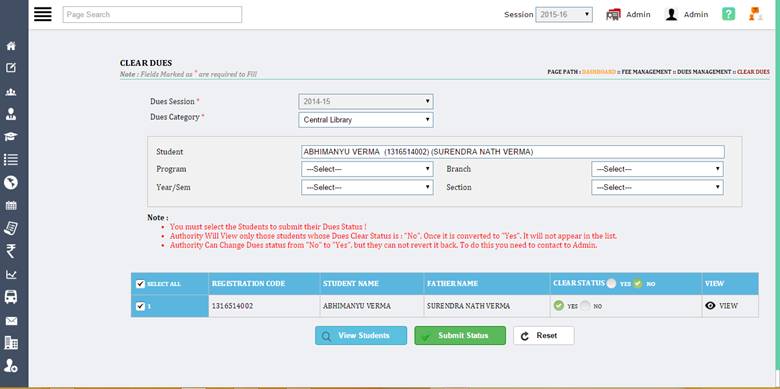
You can
assign the permission of this form to all the authority that is responsible for
dues clearance. Using this form user can clear/submit the dues status of the
particular student for their respective dues category.
·
If this form
is opened by any authority that is responsible for dues clearance then he/she
can only submit the status in their respective dues category only. While if
this form is opened by “admin”, then admin can mark the status in any
category for any student.
3.
Check
Student Dues
·
You can
assign the permission of this form to all the employees, who can check the
status of dues of any one at any time. Or can assign the permission of this
form to only those authorities who are directly responsible for dues clearance
of the students.
·
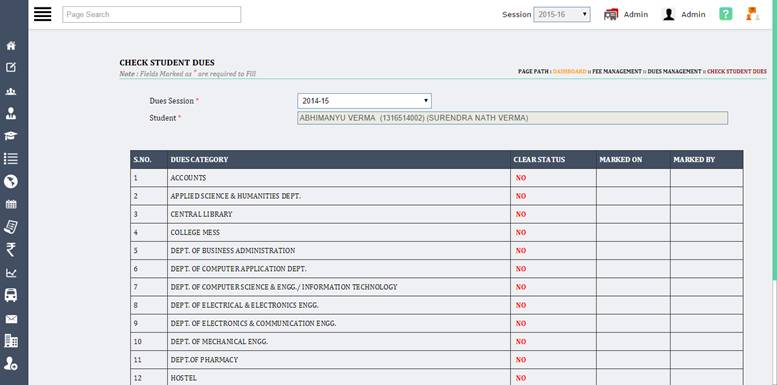
Using this
form user can check the dues status of any student for all node/category. And will
get the information when it cleared from which node.
4.
My No Dues
Form
·
This form is
completely dedicated to students; you can assign the permission of this form to
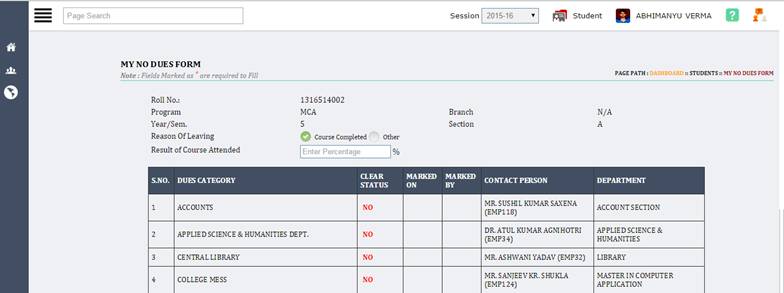
students. Using this form student can check the no. of nodes/category from
where they need to collect the dues clearance. And can also view the dues
category status at any time.
·
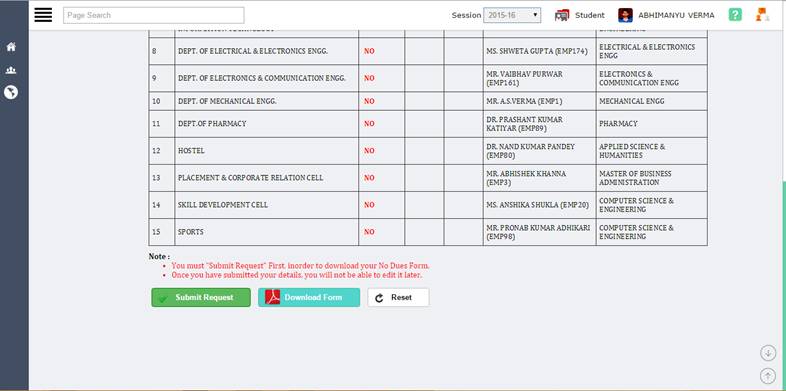
Once it is
cleared from all the dues Category, Student can submit their No dues form by
simply clicking on”Submit Request”. Once it is submitted, Student can download
their No Dues Form using the button ”Download Form” and can submit it to
Academic Office.
Note: Users are suggested to use the help
document of individual forms to know the working procedure of that form.